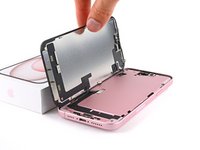
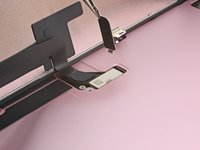
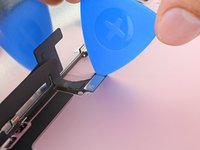
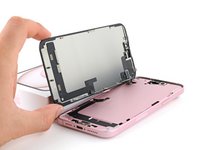
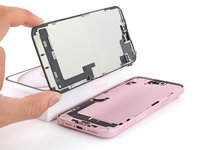
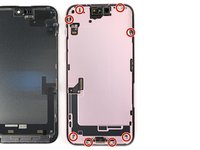
iPhone 15 Plus Screen Replacement

Go to step 1

Use this guide to replace a broken or cracked screen in your iPhone 15 Plus.

Note: Since you can't disconnect the battery during this repair, be especially careful not to use metal prying tools or touch exposed contacts in your iPhone.

Note:Due to Apple's parts pairing restrictions, on iOS 17.6 and earlier, True Tone and auto brightness are disabled after a screen replacement, even when using an original Apple screen. On iOS 18 and newer, you can calibrate your new screen using Apple's Repair Assistant to restore functionality on genuine parts.


For wholesale purchases,please contact WhatsApp:+86-18923771260 email: fengbowei3318@163.com

    • Allow your phone's battery to drain below 25%, as a charged lithium-ion battery is a potential safety hazard.

    • Unplug any cables from your phone.

    • Hold the power and either volume buttons and slide to power off your phone.

  1. iPhone 15 Plus Screen Replacement, Tape over any cracks: step 2, image 1 of 2 iPhone 15 Plus Screen Replacement, Tape over any cracks: step 2, image 2 of 2
    • If your screen or back glass is badly cracked, lay overlapping strips of packing tape over the glass to protect yourself and make disassembly easier.

    • Make sure there's a smooth area near the bottom edge that's big enough for a suction cup to stick to.

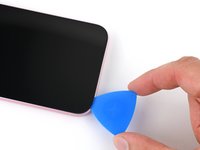
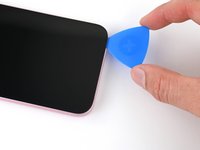
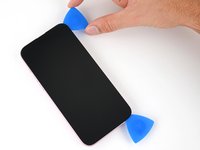
  2. iPhone 15 Plus Screen Replacement, Mark your opening picks: step 3, image 1 of 3 iPhone 15 Plus Screen Replacement, Mark your opening picks: step 3, image 2 of 3 iPhone 15 Plus Screen Replacement, Mark your opening picks: step 3, image 3 of 3
    • If inserted too far, an opening pick can damage your device. Follow this step to mark your pick and prevent damage.

    • Measure 3 mm from the tip and mark the opening pick with a permanent marker.

    • You can also mark the other corners of the pick with different measurements.

    • Alternatively, tape a coin to a pick 3 mm from the tip.

  3. iPhone 15 Plus Screen Replacement, Remove the pentalobe screws: step 4, image 1 of 1
    • Use a P2 pentalobe driver to remove the two 7.7 mm-long screws on either side of the charging port.

  4. iPhone 15 Plus Screen Replacement, Heat the bottom edge: step 5, image 1 of 1
    • Use a hair dryer or heat gun to heat the bottom edge of the screen until it's hot to the touch.

    • Be careful not to heat the phone hotter than this—the battery is susceptible to heat damage.

  5. iPhone 15 Plus Screen Replacement, Insert an opening pick: step 6, image 1 of 3 iPhone 15 Plus Screen Replacement, Insert an opening pick: step 6, image 2 of 3 iPhone 15 Plus Screen Replacement, Insert an opening pick: step 6, image 3 of 3
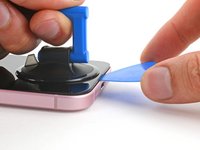
    • Apply a suction handle to the bottom edge of the screen.

    • Pull up on the handle with a strong, steady force to create a gap between the screen and the frame.

    • Insert the tip of an opening pick into the gap.

  6. iPhone 15 Plus Screen Replacement, Screen information: step 7, image 1 of 2 iPhone 15 Plus Screen Replacement, Screen information: step 7, image 2 of 2
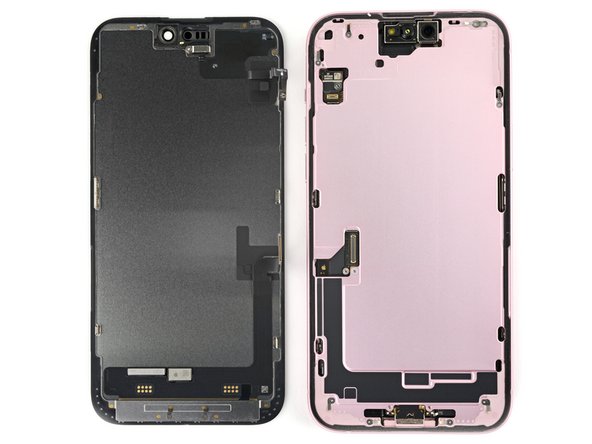
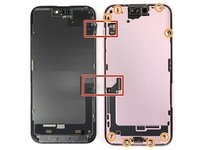
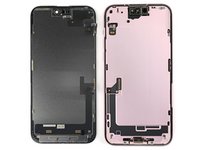
    • As you slice the adhesive securing the screen in the next steps, be careful of the following areas:

    • There are two delicate cables connecting the screen to the phone, one just above the mute switch, and the other about halfway between the volume down button and the bottom of the phone.

    • There are multiple spring contacts around the perimeter of the phone. Be extra careful not to insert your pick deeper than suggested in these locations to avoid bending the contacts.

  7. iPhone 15 Plus Screen Replacement, Separate the bottom edge adhesive: step 8, image 1 of 3 iPhone 15 Plus Screen Replacement, Separate the bottom edge adhesive: step 8, image 2 of 3 iPhone 15 Plus Screen Replacement, Separate the bottom edge adhesive: step 8, image 3 of 3
    • Don't insert your opening pick deeper than 3 mm along the bottom edge.

    • Slide your pick back and forth along the bottom edge to separate the adhesive.

    • Leave your pick inserted in the bottom right corner to prevent the adhesive from re-sealing.

  8. iPhone 15 Plus Screen Replacement, Heat the right edge: step 9, image 1 of 1
    • Heat the right edge of the screen until it's hot to the touch.

  9. iPhone 15 Plus Screen Replacement, Separate the right edge adhesive: step 10, image 1 of 3 iPhone 15 Plus Screen Replacement, Separate the right edge adhesive: step 10, image 2 of 3 iPhone 15 Plus Screen Replacement, Separate the right edge adhesive: step 10, image 3 of 3
    • Don't insert your pick deeper than 5 mm along the right edge.

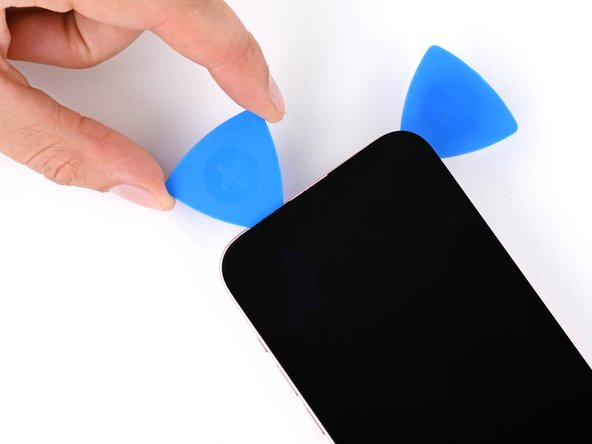
    • Insert a second opening pick to the right of the first one.

    • Slide the pick along the right edge of the screen to release the clips and separate the adhesive securing it.

  10. iPhone 15 Plus Screen Replacement, Heat the top edge: step 11, image 1 of 1
    • Heat the top edge of the screen until it's hot to the touch.

  11. iPhone 15 Plus Screen Replacement, Separate the top edge adhesive: step 12, image 1 of 2 iPhone 15 Plus Screen Replacement, Separate the top edge adhesive: step 12, image 2 of 2
    • Don't insert your pick deeper than 3 mm along the top edge.

    • Insert a third opening pick in the top right corner and slide it along the top edge to release the two clips and adhesive securing it.

  12. iPhone 15 Plus Screen Replacement, Heat the left edge: step 13, image 1 of 1
    • Heat the left edge of the screen until it's hot to the touch.

  13. iPhone 15 Plus Screen Replacement, Separate the left edge adhesive: step 14, image 1 of 3 iPhone 15 Plus Screen Replacement, Separate the left edge adhesive: step 14, image 2 of 3 iPhone 15 Plus Screen Replacement, Separate the left edge adhesive: step 14, image 3 of 3
    • Don't insert your pick deeper than 3 mm along the left edge to avoid the two cables connecting the screen to the phone.

    • Slide your pick around the top left corner of the screen and along the left edge to release the clips and separate the adhesive securing it.

  14. iPhone 15 Plus Screen Replacement, Swing open the screen: step 15, image 1 of 2 iPhone 15 Plus Screen Replacement, Swing open the screen: step 15, image 2 of 2
    • Gently swing open the screen over the left edge of the phone.

    • If the screen feels stuck, go back around the perimeter to check for missed sections of adhesive or stuck clips.

    • Rest the screen against a box or similar object so it doesn't strain the cables.

  15. iPhone 15 Plus Screen Replacement, Unfasten the front sensor connector cover: step 16, image 1 of 1
    • Use a tri-point Y000 driver to remove the 0.9 mm‑long screw securing the front sensor connector cover.

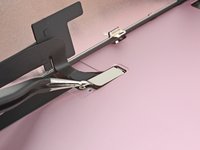
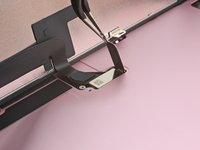
  16. iPhone 15 Plus Screen Replacement, Remove the cover: step 17, image 1 of 3 iPhone 15 Plus Screen Replacement, Remove the cover: step 17, image 2 of 3 iPhone 15 Plus Screen Replacement, Remove the cover: step 17, image 3 of 3
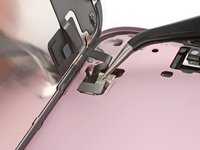
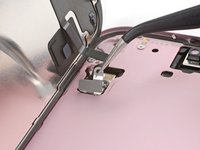
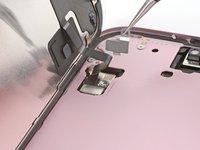
    • Use tweezers to lift the cover to a 90-degree angle.

    • Unhook the cover from its slot in the logic board.

    • Remove the cover.

    • During reassembly, insert the cover at a 90-degree angle to re-engage the hook before laying it flat against the press connector.

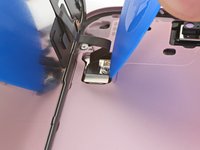
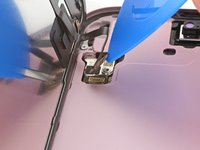
  17. iPhone 15 Plus Screen Replacement, Disconnect the front sensor: step 18, image 1 of 2 iPhone 15 Plus Screen Replacement, Disconnect the front sensor: step 18, image 2 of 2
    • Use the tip of an opening pick to pry up and disconnect the front sensor press connector.

    • To reconnect a press connector, align it over its socket and gently press down on one side until it clicks into place, then press down on the other side.

  18. iPhone 15 Plus Screen Replacement, Unfasten the screen connector cover: step 19, image 1 of 1
    • Use your tri-point Y000 driver to remove the 0.9 mm‑long screw securing the screen connector cover.

  19. iPhone 15 Plus Screen Replacement, Remove the cover: step 20, image 1 of 3 iPhone 15 Plus Screen Replacement, Remove the cover: step 20, image 2 of 3 iPhone 15 Plus Screen Replacement, Remove the cover: step 20, image 3 of 3
    • Use tweezers to lift the cover and unlatch it from its hook on the logic board.

    • Remove the cover.

  20. iPhone 15 Plus Screen Replacement, Disconnect the screen: step 21, image 1 of 2 iPhone 15 Plus Screen Replacement, Disconnect the screen: step 21, image 2 of 2
    • Use the tip of an opening pick to pry up and disconnect the screen press connector.

  21. iPhone 15 Plus Screen Replacement, Remove the screen: step 22, image 1 of 3 iPhone 15 Plus Screen Replacement, Remove the screen: step 22, image 2 of 3 iPhone 15 Plus Screen Replacement, Remove the screen: step 22, image 3 of 3
    • Remove the screen.

    • During reassembly, use this guide to reapply adhesive and install your new screen.

    • Be careful not to damage any of the spring contacts as you clean the frame.